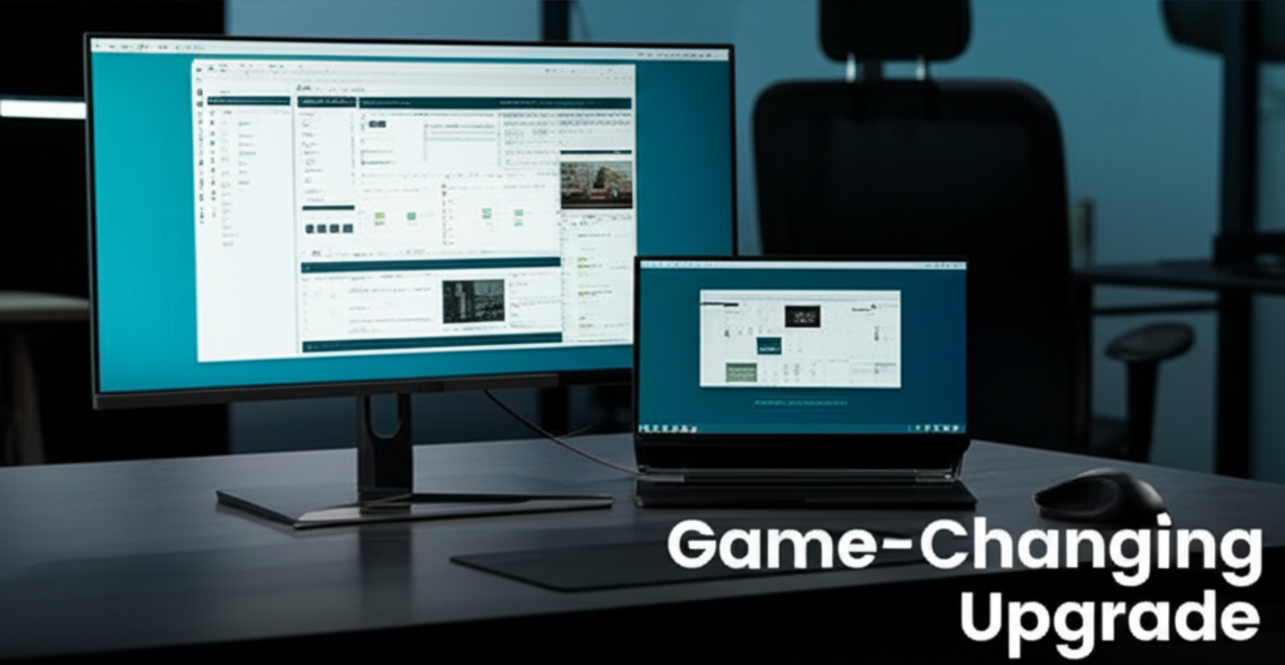
For years I’ve been juggling a single monitor and a cramped laptop screen. Even with a minimalist setup, the lack of extra real estate made multitasking feel like a constant juggling act. That all changed when I decided to add a portable monitor alongside my main display. The inexpensive upgrade turned out to be a game‑changer, especially when desk space is limited and mobility is key. Below is a detailed walkthrough of why this addition boosted my productivity, how to pick the right model, and the practical steps that made the transition smooth.
Why I Needed a Portable Monitor
My work routine was rooted in data analysis, coding, and graphic design—tasks that thrive on split‑screen functionality. Yet, my desk was already crowded with a phone, coffee mug, and a stack of reference books. Adding a traditional monitor would have meant cutting out other essentials or expanding the desk, both of which were impractical. A portable monitor offered a lightweight, space‑saving solution without sacrificing the crispness required for code debugging or design layout. It also provided the flexibility to transform my home office into a portable workstation for client sites, co‑working spaces, and even outdoor coffee shops.
Choosing the Right Portable Display
The market now offers dozens of options, but a few key criteria helped narrow my search:
- Resolution – A 1920×1080 or 2560×1440 display ensures clarity for text and visuals.
- Ports – USB‑C with Power Delivery is ideal for a single cable that charges the laptop and powers the monitor.
- Refresh Rate – 60Hz is sufficient for most professional tasks, though 144Hz can be beneficial for video editing.
- Build Quality – An aluminum chassis not only feels premium but also improves heat dissipation.
After comparing specs, I settled on a 15.6‑inch model with 1920×1080 resolution, USB‑C connectivity, and a slim aluminum frame. The price point—under $150—made it a low‑risk investment.
Setup Tips for Seamless Workflow
Installing the monitor was straightforward: I plugged the USB‑C cable into the laptop’s Thunderbolt port, placed the screen beside the main display, and let the system auto‑detect. A few tweaks, however, turned the setup into a productive powerhouse:
- Arrange Virtual Desktops – Using Windows 10/11’s “Snap” feature, I positioned the portable monitor to the left, allowing code to stay on the main screen while documentation or spreadsheets floated on the side.
- Calibrate Colors – A quick calibration using the monitor’s built‑in settings ensured consistent color grading across both displays.
- Adjust Ergonomics – The monitor’s adjustable stand allowed me to align the top of the screen at eye level, reducing neck strain during long coding sessions.
These small adjustments made the new setup feel like a natural extension of my existing workflow.
Benefits Beyond the Desk
Beyond expanding screen space, the portable monitor introduced several unexpected advantages:
- Travel Friendly – I can pack the screen in a lightweight case and use it as a secondary display on client sites or conferences without needing to lug a full‑size monitor.
- Cost‑Effective Expansion – Instead of purchasing a large monitor or upgrading the entire desk, the portable display delivers equivalent productivity at a fraction of the cost.
- Reduced Clutter – The compact footprint frees up desk space for other essentials like notebooks, a standing desk converter, or a small whiteboard.
These benefits reinforce the idea that a portable monitor is more than a simple add‑on—it’s a versatile tool that adapts to evolving work environments.
Real‑World Usage Scenarios
In practice, the monitor shines in several contexts:
- Remote Work – When I travel for a client meeting, I set up the portable display in a hotel room and connect my laptop via USB‑C. The dual‑monitor setup replicates my home office, speeding up data review and report drafting.
- Co‑Working Spaces – In shared office settings, the monitor’s portability allows me to claim a corner and maintain the same workflow I have at home.
- Creative Projects – For design tasks, I keep the main monitor for detailed work and use the portable screen for reference images, thereby maintaining focus without constant window toggling.
These scenarios illustrate how a portable monitor can seamlessly integrate into a variety of professional settings.
Cost vs. Value: A Smart Investment
Priced at just under $150, the monitor’s cost is minimal compared to the productivity gains. If you factor in reduced eye strain, less clutter, and the flexibility to work anywhere, the ROI becomes evident. For freelancers or remote employees, the savings on office space and travel time translate into tangible financial benefits. Even for in‑office professionals, the upgrade is a low‑risk experiment with high potential payoff.
Final Thoughts
Adding a portable monitor to my existing setup was a simple, inexpensive tweak that yielded outsized results. The combination of expanded screen real estate, ergonomic flexibility, and mobile compatibility made it an indispensable tool. Whether you’re a developer, designer, or data analyst, a portable display offers a cost‑effective way to transform your workspace—whether it’s a cramped home office or a bustling co‑working environment. If you’re on the fence, consider the benefits it brings to productivity, portability, and overall desk hygiene. In my experience, the upgrade is a game changer that delivers lasting value beyond the initial purchase price.