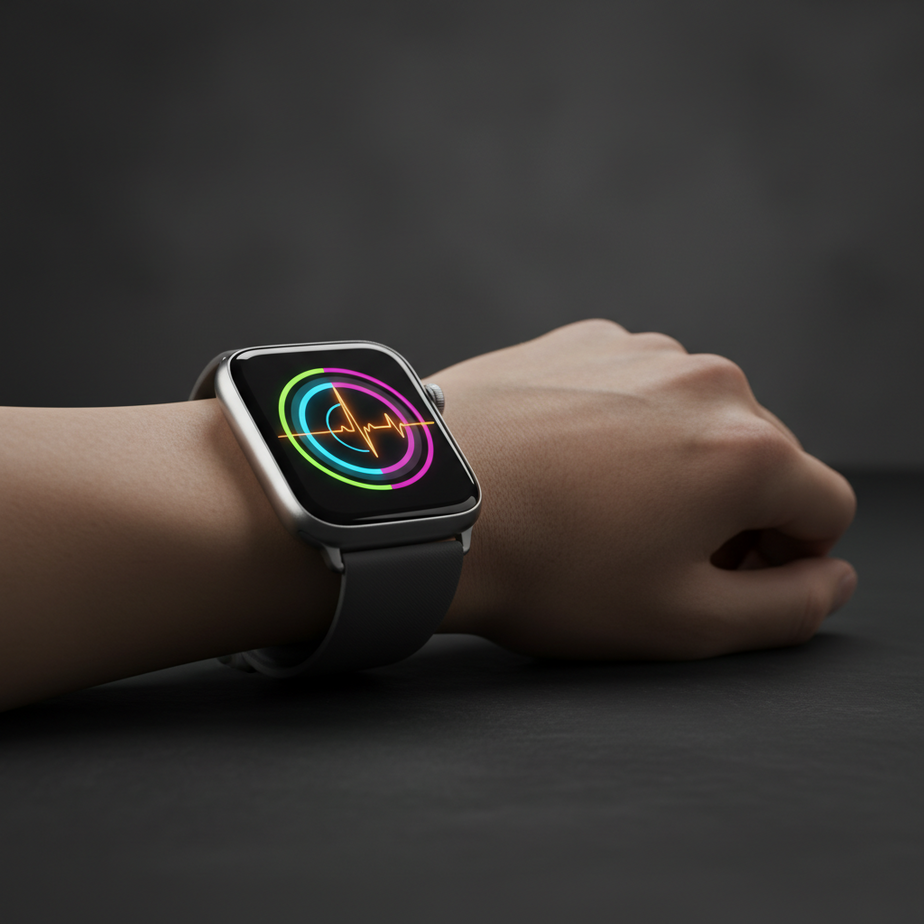
The Hidden Power on Your Wrist: Discovering AssistiveTouch
AssistiveTouch lets you control your Apple Watch with simple hand gestures. It is useful when you need to keep a hand busy or when touching the screen is hard.
What Exactly Is AssistiveTouch?
AssistiveTouch translates hand and wrist movements into commands using the watch’s motion sensors. Common gestures are pinching, double‑pinching, clenching, and double‑clenching. These gestures navigate menus, select items, or trigger shortcuts.
Why Most Apple Watch Users Miss This Hidden Capability
The feature lives in the Accessibility section, a place many link to special needs. Because of this placement, it is often overlooked. Once you enable AssistiveTouch, the gestures feel intuitive and learn quickly, letting you use them daily with little effort.
Enabling AssistiveTouch
A Step-by-Step Guide
- Open the Apple Watch app on your iPhone.
- Tap the My Watch tab.
- Scroll down and select Accessibility.
- In the Interaction section, tap AssistiveTouch.
- Toggle AssistiveTouch to On.
- Confirm that you want to enable Hand Gestures.
- Optionally, tap Hand Gestures to customize the default actions.
When AssistiveTouch is on, a blue ring shows around the watch face. A motion pointer also appears during a gesture, giving visual feedback.
Customizing Your Gestures and Actions
AssistiveTouch lets you assign actions to each of the four core gestures:
- Pinch: Move to the next item.
- Double Pinch: Move to the previous item.
- Clench: Tap or select the highlighted item.
- Double Clench: Open the Action Menu for more options.
Feel free to experiment until the gestures feel natural.
Mastering the Gestures
The Hand Gestures Explained
AssistiveTouch detects gestures via the watch’s gyroscope and accelerometer. The blue ring and motion pointer confirm each gesture, making it easy to learn and use.
Practical Scenarios
Controlling Media Playback
During a workout or cooking, a clench pauses music. A pinch or double‑pinch skips tracks.
Answering Calls Discreetly
Use a double‑clench to answer a call. A single clench dismisses it without looking at the watch.
Navigating Menus
Pinch and clench let you scroll and select items. For example, open notifications or scroll activity rings.
Workout Control
Use a clench to pause, and a double‑clench to finish a workout. This keeps you focused on the activity.
Advanced Tips and Tricks
Utilize Quick Actions
AssistiveTouch offers quick shortcuts for tasks like answering calls or snoozing alarms. A single clench usually activates these.
Customize Gesture Assignments
Assign different actions to each gesture to match your workflow. For example, map a double‑clench to open the Action Menu.
Pair with Accessibility Shortcuts
Assign AssistiveTouch to the Accessibility Shortcut—triple‑click the Digital Crown—to toggle it quickly.
Explore Motion Pointer and Manual Scanning
The Motion Pointer lets you tilt the watch to control a cursor. Manual Scanning highlights items one by one for selection.
Enable Haptic Feedback
Turn on haptic feedback in your watch settings. Then you feel a vibration when a gesture is recognized.
Beyond Convenience: The Deeper Impact of AssistiveTouch
For Accessibility Needs
AssistiveTouch helps people with physical limitations or temporary injuries use the Apple Watch more easily. It increases independence and engagement.
For Enhanced Productivity
Even without accessibility needs, users benefit by managing notifications, setting timers, or controlling media without removing gloves. This keeps them focused on the task.
FAQ
Is AssistiveTouch only for accessibility?
No. AssistiveTouch offers convenient hands‑free control to all users.
Does AssistiveTouch drain the Apple Watch battery faster?
It uses the watch’s sensors, but battery impact is minimal for typical use.
Can I customize the gestures for AssistiveTouch?
Yes. Assign any action to pinch, double‑pinch, clench, or double‑clench in the Apple Watch app.
What if the gestures don’t work reliably?
Ensure the watch fits snugly on your wrist. Toggle AssistiveTouch off and on again. If problems persist, consult Apple’s support resources.
Conclusion
AssistiveTouch turns your Apple Watch into a more versatile tool by adding hands‑free control. Once you enable it and practice the gestures, managing calls, music, and menus becomes easier during busy moments. This feature is worth exploring, whether you need accessibility or a smoother workflow.