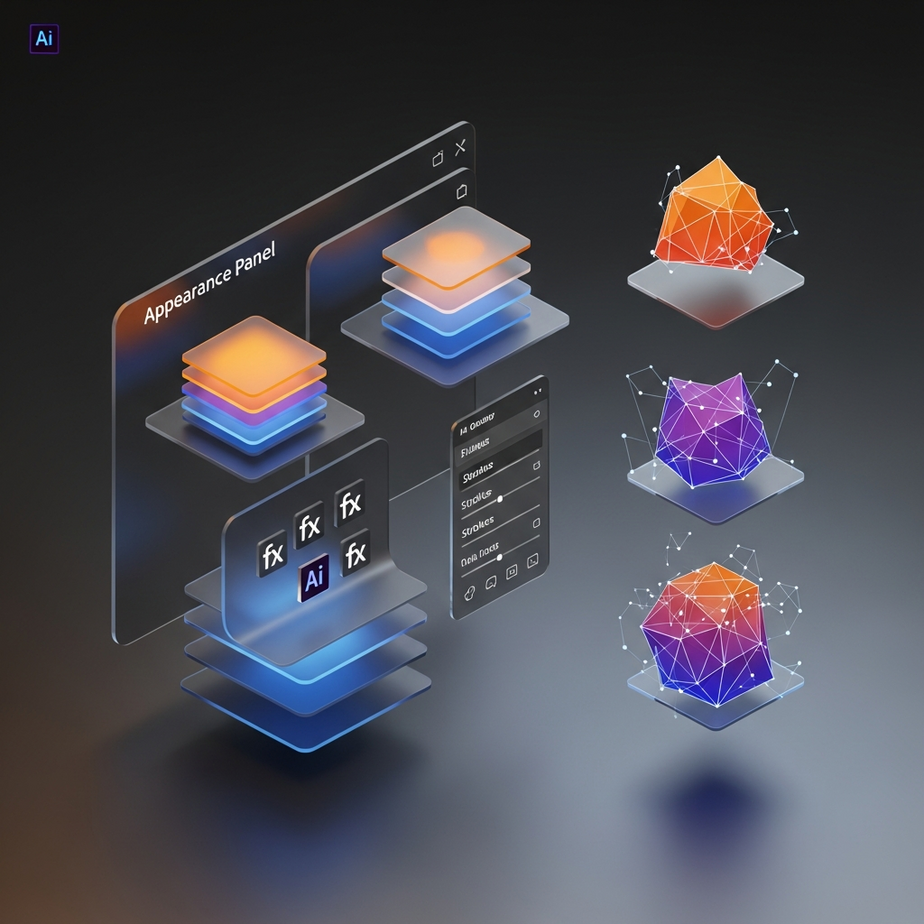
Many graphic designers remember the frustration of their early days working with vector software. You would apply a drop shadow or a glow to an object, move on to the next task, and then realize ten minutes later that the shadow was too dark or the glow was the wrong color. If you didn’t know where to look, you might have found yourself hitting the undo button repeatedly or, worse, deleting the object and starting over. This is a common workflow bottleneck that disappears the moment you learn how to properly leverage the software’s underlying architecture. The secret to maintaining flexibility lies in your ability to edit Illustrator effects in the Appearance panel, a powerful hub that serves as the command center for non-destructive design. Adobe Illustrator is built on the concept of keeping paths and visual attributes separate until the final output. While the Tools panel lets you draw shapes and the Properties panel gives you quick access to dimensions, the Appearance panel is where the true magic of styling happens. It allows you to stack fills, strokes, and effects on a single path without ever permanently altering the original shape. Whether you are a seasoned professional looking to refine your workflow or a beginner tired of destructive editing, mastering this panel is the key to faster, more creative design sessions.
The Anatomy of the Appearance Panel
To truly understand how to edit Illustrator effects in the Appearance panel, you first need to understand what the panel actually displays. At its core, the Appearance panel acts somewhat like the Layers panel, but specifically for a single selected object. Instead of showing you a hierarchy of different shapes, it shows you a hierarchy of attributes applied to the currently selected shape. When you select a standard vector square, the panel will typically list a distinct Path, a Stroke, a Fill, and an Opacity setting. However, as you begin to design more complex graphics, this list grows. You can add multiple strokes to a single line or pile several fills on top of one another. This stacking order is crucial because it dictates how the object looks on the canvas. Items at the top of the list appear visually in front of items lower on the list. The beauty of this system is that every single attribute remains “live.” This means the computer is calculating the visual result in real-time based on the mathematical path. If you apply a Zig Zag effect to a straight line, the line remains straight in the software’s memory, but the Appearance panel tells the renderer to display it as jagged. Because the original path is untouched, you can go back and change the settings of that Zig Zag at any moment. This separation of structure and style is the foundation of modern vector editing.
Distinguishing Between Vector and Raster Effects
One important distinction to make when working in this panel is the difference between Illustrator effects and Photoshop effects. The Effects menu is divided into these two categories. Vector effects, such as “Pucker & Bloat” or “Offset Path,” rely on vector math and are resolution-independent. They will scale perfectly to any size. Raster effects, which include things like “Gaussian Blur” or “Drop Shadow,” generate pixels based on the document’s raster effects settings. While both types live comfortably inside the Appearance panel, knowing which is which helps you predict how the file will print or export. Regardless of the type, both are editable in exactly the same way, allowing you to tweak blur radiuses or distortion percentages long after you first applied them.
How to Edit Illustrator Effects in the Appearance Panel
The process to edit Illustrator effects in the Appearance panel is straightforward, yet it is often overlooked by users accustomed to other interfaces. When you apply an effect from the overhead menu, a dialog box usually appears, allowing you to set your parameters. Once you click OK, that dialog box vanishes. To bring it back, you must not go back to the Effects menu. Doing so will simply apply a second instance of the effect on top of the first one, leading to confusion and messy files. Instead, you must look at the Appearance panel. Locate the specific effect you want to change. You will notice that the name of the effect is underlined and colored blue, indicating that it is a hyperlink. By clicking on this hyperlinked name, Illustrator re-opens the original settings dialog box. For example, imagine you have applied a 3D Extrude & Bevel effect to a text object. Later, you decide the angle of the extrusion is off. You simply select the text, open the Appearance panel, find the “3D Extrude & Bevel” item in the stack, and click it. The cube interface reappears with your previous settings intact, allowing you to rotate the object or adjust the depth. This workflow ensures you never have to guess your previous settings or start from scratch.
Reordering Effects for Different Results
The ability to edit Illustrator effects in the Appearance panel goes beyond just changing numerical values. You can also change the order in which effects are applied, which can drastically alter the visual outcome. This works via a simple drag-and-drop mechanism. Consider an object with a stroke and a “Roughen” effect. If the Roughen effect is placed below the stroke in the Appearance panel, the stroke itself will look roughened. However, if you drag the Roughen effect above the stroke or apply it specifically to the fill, the results change. This hierarchical control gives you granular precision. You can apply a drop shadow to just the stroke of an object while leaving the fill flat, or vice versa. Understanding that the order of operations matters is a significant step toward advanced vector mastery.
Stacking Multiple Strokes and Fills
One of the most powerful features hidden within the Appearance panel is the ability to apply multiple strokes and fills to a single object. In many other design programs, an object is limited to one border and one color. In Illustrator, this limitation does not exist. By using the “Add New Stroke” or “Add New Fill” buttons at the bottom of the panel, you can layer attributes to create complex styles that look like grouped objects but are actually just one path. This capability is essential when you want to edit Illustrator effects in the Appearance panel creatively. For instance, you can create a roadmap style by taking a single line path, giving it a thick black stroke, and then adding a thinner yellow stroke on top of it. In the Appearance panel, the yellow stroke sits above the black stroke. Because they are on the same path, they move together, curve together, and scale together.
Applying Effects to Specific Attributes
The power of stacking increases when you combine it with effect targeting. You can apply an effect to the entire object, or you can apply an effect to just one specific fill or stroke. This is done by highlighting the specific attribute in the Appearance panel before selecting the effect from the menu. Let us look at a practical example. You want to create a sticker effect for a text logo. You can add a new fill to the text, drag it below the original characters, change the color to white, and apply an “Offset Path” effect to that specific white fill. This creates a white border around the shape. Then, you can apply a “Drop Shadow” effect to that same white fill. You now have text with a colored face, a white contour, and a shadow, all contained within a single live text object. If you notice a typo, you can correct the text, and the contour and shadow will update automatically. This level of flexibility is impossible without the Appearance panel.
Handling Opacity and Blending Modes
Opacity in Illustrator is not just a global setting for an object. While you can certainly lower the opacity of a whole group, the Appearance panel allows you to drill down deeper. Every fill and every stroke has its own opacity arrow and blending mode controls. This granular control is vital for creating sophisticated graphical treatments without generating dozens of layers. When you click the arrow next to a specific fill in the Appearance panel, you can access the “Opacity” hyperlink. Clicking this opens a mini-panel where you can change the blending mode to something like Multiply, Screen, or Overlay. This means you can have a shape with a solid base fill, and a second patterned fill on top set to “Overlay” to create a texture effect. This becomes particularly useful when you need to edit Illustrator effects in the Appearance panel that involve transparency. For example, if you are designing a glass button, you might have multiple gradient fills stacked on top of each other. The bottom fill provides the color, while the top fill creates the glossy highlight. By adjusting the opacity and blending mode of just the highlight fill, you can fine-tune the shine without washing out the color underneath.
The Knockout Group and Isolate Blending Options
For advanced users, the Opacity link at the very bottom of the Appearance stack offers special features like “Knockout Group.” When checked, this prevents elements within a group from showing through each other, even if they have transparency. This is incredibly useful when using the Appearance panel to style a group of objects as a single unit. It ensures that the transparency effects interact with the background behind the group, rather than the overlapping parts of the objects inside the group.
Managing Graphic Styles for Efficiency
Once you have spent time configuring a complex set of attributes—perhaps a triple-stroke border with a drop shadow and a grain texture—you certainly do not want to rebuild it for the next object. This is where the Graphic Styles panel acts as a partner to the Appearance panel. You can drag the thumbnail from the top of the Appearance panel directly into the Graphic Styles panel. This saves the entire stack of appearances as a reusable style. Later, when you create a new shape, one click on that saved style applies all the fills, strokes, effects, and opacity settings instantly. If you later decide to edit Illustrator effects in the Appearance panel for that specific style, you can do so on one object. After making the tweak—perhaps softening a shadow or changing a stroke color—you can update the Graphic Style. This global update will immediately reflect on every single object in your document that uses that style. This feature alone can save hours of work on large projects like maps, UI kits, or branding packages where consistency is mandatory.
Troubleshooting Common Appearance Panel Issues
Even with a solid understanding of the workflow, designers occasionally run into hurdles. One common issue is the “hidden” effect. Sometimes, you might see a visual effect on your artboard, but when you look at the Appearance panel, you cannot find it. This usually happens because the effect was applied to a Group or a Layer rather than the object itself. The Appearance panel is context-sensitive. If you select an object inside a group, the panel shows the object’s attributes. To see the group’s attributes, you must use the selection tool to target the group specifically, or look at the top of the Appearance panel where it indicates what is currently targeted (e.g., “Path,” “Group,” or “Type”). If the word “Group” is listed, click it to see effects applied at that level. Another common confusion arises when effects are applied without a selection. If you have nothing selected and you change settings in the Appearance panel or choose a swatch, you are setting the “default appearance” for the next object you draw. If your new shapes are appearing with strange strokes or effects you did not intend, check the Appearance panel with nothing selected and clear the appearance.
Expanding Appearance vs. Editing Appearance
There is a command in the Object menu called “Expand Appearance.” It is important to know when to use this and when to avoid it. Expanding appearance takes all the live effects and dynamic strokes you have built in the Appearance panel and “bakes” them into standard vector paths. You should generally avoid doing this during the design phase. Once you expand, you lose the ability to edit Illustrator effects in the Appearance panel. You can no longer adjust the drop shadow radius or change the offset path width; you are left with static shapes. However, expanding is often necessary for the final handoff, especially if you are sending files to a vinyl cutter, a laser engraver, or a printer who might not have the same plugins or font versions. Always keep a “live” copy of your artwork before expanding, just in case revisions are needed later.
Best Practices for a Non-Destructive Workflow
Adopting a non-destructive workflow requires a shift in mindset. It means resisting the urge to duplicate objects to create shadows or outlines. Instead, you trust the Appearance panel to handle the visual complexity. Start by naming your layers and organizing your groups. Because the Appearance panel can get complex, knowing exactly what you are selecting is helpful. Use the “eyeball” icon next to each attribute in the panel to toggle visibility. This is a great way to debug a complex style; by turning layers off one by one, you can isolate exactly which effect is causing a visual problem. Additionally, remember that you can drag and drop attributes between objects. If you have an object with a perfect gradient stroke, you can click that stroke in the Appearance panel and drag it onto another object on your artboard. This is a quick alternative to creating a full Graphic Style for one-off transfers.
Unlocking Creative Potential
When you fully embrace the ability to edit Illustrator effects in the Appearance panel, you unlock a level of creativity that feels more like sculpting than drawing. You are no longer restricted by the static nature of lines and shapes. Instead, you are building dynamic recipes for how those shapes should look. This approach allows for rapid experimentation. You can push a design to the extreme with heavy distortions and textures, knowing that with a few clicks, you can dial it back to a clean, minimalist look. You can present three different variations of a logo to a client without drawing the logo three times; you simply apply three different appearance stacks to the same live type. Furthermore, this workflow keeps your file sizes manageable. Instead of having thousands of anchor points generating a texture, you have a simple shape with a texture effect applied. This keeps the software running smoothly and makes the file easier to share and store.
Moving Forward with Modular Design
The modern design landscape values adaptability. Whether you are designing responsive web elements or print materials that need to scale from business cards to billboards, the flexibility provided by the Appearance panel is indispensable. By keeping your effects live and editable, you future-proof your designs. We have covered the hierarchy of the panel, the difference between vector and raster effects, the power of stacking multiple attributes, and the efficiency of Graphic Styles. These tools combined turn Adobe Illustrator into a parametric design engine. You are not just pushing pixels or pulling points; you are programming the visual output of your artwork. As you continue to work with these tools, challenge yourself to reduce the number of objects on your artboard. If you find yourself grouping three shapes to make one button, ask yourself if you could achieve the same look with one shape and three fills in the Appearance panel. More often than not, the answer is yes, and the result will be cleaner, easier to edit, and more professional. The transition to using the Appearance panel as your primary editing tool might take some practice, but the payoff is immense. You will spend less time fixing mistakes and more time exploring creative possibilities. So, the next time you need to tweak a shadow or adjust a stroke, resist the urge to undo. Instead, look to the panel, find the link, and make your change with the precision of a pro.