Why Your Chromebook’s USB Ports Are More Vulnerable Than You Think
The USB port is the unsung hero of modern computing. It charges our devices, connects our peripherals, and transfers our most important files with plug-and-play simplicity. For Chromebook users, these ports are essential gateways to expanding the functionality of a streamlined operating system. However, this convenience comes with a hidden cost. While ChromeOS is renowned for its robust security, the physical ports are a direct line to your device’s sensitive hardware. Knowing the five things to never plug into your Chromebook’s USB ports isn’t just a technical tip—it’s a critical practice for protecting your investment and your data from irreversible damage.
This isn’t about fear-mongering; it’s about awareness. The wrong device can deliver a fatal electrical surge, introduce malicious code that bypasses software defenses, or slowly degrade your hardware over time. By understanding these threats, you can continue to enjoy the versatility of your Chromebook without falling victim to common and easily avoidable pitfalls. Let’s explore the items that should never get near your machine.
1. The “USB Killer”: A Digital Assassin for Your Hardware
The first and most dangerous item on our list sounds like something from a spy movie, but it’s terrifyingly real. The “USB Killer” is a device that looks exactly like an ordinary USB flash drive but is designed for one malicious purpose: to permanently destroy any device it’s plugged into. This makes it one of the most critical things to never plug into your Chromebook’s USB ports.
How a USB Killer Works
Unlike a normal USB drive that facilitates data transfer, a USB Killer contains a set of capacitors. When plugged in, it rapidly draws power from the USB port to charge these capacitors. Once fully charged—a process that takes only a second—it discharges a high-voltage surge of over 200 volts back into the device’s data lines.
This process repeats several times per second, frying the sensitive circuitry on the motherboard. The result is almost always catastrophic and irreversible damage. Your Chromebook won’t just shut down; its core components will be electronically destroyed, rendering it completely useless.
Where You Might Encounter One
You’re unlikely to purchase a USB Killer by accident, but you could easily become a victim. These devices can be planted in public places like libraries, airports, or cafes, disguised as lost flash drives. A curious person finding a “free” USB stick might plug it in without a second thought, only to see their laptop die instantly.
Because the attack is purely physical (electrical), no software security, including the hardened ChromeOS, can protect against it. The only defense is prevention. Never, under any circumstances, plug a found or suspicious USB device into your Chromebook.
2. Unknown or Untrusted USB Flash Drives
While not as instantly destructive as a USB Killer, an unknown flash drive poses a significant threat to your data and privacy. Hackers and malicious actors often use “lost” USB drives as bait, loading them with malware that can compromise your system. These devices are definitely on the list of things to never plug into your Chromebook’s USB ports.
The Threat of BadUSB
One of the most insidious types of attacks is known as “BadUSB.” In this scenario, a hacker reprograms the firmware of the USB drive’s controller chip. When you plug it in, your Chromebook doesn’t see it as a storage device. Instead, it identifies it as a different type of peripheral, most commonly a keyboard.
Once recognized as a keyboard, the malicious drive can start injecting keystrokes at lightning speed. It can open a browser, navigate to a malicious website, download malware, or even log into your accounts if you have saved passwords. Because the commands are coming from a device your Chromebook trusts as a Human Interface Device (HID), these actions often bypass traditional antivirus and malware scanners.
Other Malware Risks
Beyond BadUSB, a seemingly innocent drive can contain other forms of malicious software:
– Ransomware: Encrypts your files and demands payment for their release.
– Spyware: Secretly records your activity, capturing passwords, browsing history, and personal information.
– Viruses and Worms: Can corrupt your files and attempt to spread to other devices on your network.
While ChromeOS’s sandboxing architecture provides excellent protection against traditional viruses, determined attackers are always finding new exploits. The golden rule is simple: if you don’t know exactly where a USB drive came from and what’s on it, don’t plug it in.
3. High-Powered and Uncertified Peripherals
Not all USB threats are malicious; some are simply a result of poor engineering. Your Chromebook’s USB ports are designed to supply a specific, regulated amount of power to connected devices according to universal standards. Plugging in cheap, uncertified, or high-draw accessories can lead to serious hardware problems.
Understanding USB Power Delivery
Modern USB ports, especially USB-C, are capable of delivering significant power—enough to charge the Chromebook itself. This is governed by a set of standards called USB Power Delivery (USB-PD). Certified devices “negotiate” with the host (your Chromebook) to determine the safe and appropriate amount of voltage and amperage to use.
The problem arises with knock-off or poorly made accessories that ignore these standards. A cheap USB-powered desk fan, a novelty mug warmer, or a powerful, unbranded LED light strip might try to draw more power than the port is designed to provide safely.
The Risks of Overloading a Port
When a peripheral tries to pull too much current, several things can happen, none of them good:
– Port Damage: The internal components of the USB port can overheat and burn out, rendering it useless.
– Motherboard Damage: In a worst-case scenario, the power overload can travel further, damaging the power regulation circuitry on the motherboard—an expensive and difficult repair.
– Inconsistent Performance: The device may work intermittently, or other connected peripherals might start to fail as the Chromebook struggles to supply enough power.
To avoid this, always purchase accessories from reputable brands that adhere to official standards. Look for certifications from the USB Implementers Forum (USB-IF), which ensures the product has been tested for safety and compliance. These uncertified gadgets are subtle but damaging things to never plug into your Chromebook’s USB ports.
4. Public Charging Cables and Stations
Finding a public USB charging port at an airport, hotel, or coffee shop can feel like a lifesaver when your battery is low. However, you should think twice before plugging your Chromebook directly into one. This practice, known as “juice jacking,” is a growing security concern.
How Juice Jacking Works
A standard USB cable has pins for both power and data transfer. Cybercriminals can modify public charging stations or even leave behind malicious cables that look perfectly normal. When you plug in your device, these compromised ports can exploit the data connection to:
– Steal Your Data: Silently download photos, contacts, passwords, and other sensitive files from your device.
– Install Malware: Sideload malicious apps or software onto your Chromebook without your knowledge.
While ChromeOS has built-in protections that require user permission for data access, sophisticated attacks can sometimes find ways to trick users or exploit unknown vulnerabilities. Given the potential for data theft, a public USB cable is one of the things to never plug into your Chromebook’s USB ports without taking precautions.
Safer Charging Alternatives
You don’t have to risk running out of battery in public. Here are safer ways to charge:
– Use Your Own AC Adapter: The safest method is to plug your own power brick directly into a standard wall outlet.
– Carry a Portable Power Bank: Invest in a quality power bank from a trusted brand and keep it charged.
– Use a USB Data Blocker: These small, inexpensive adapters fit between the charging cable and the USB port. They physically block the data pins, ensuring that only power can flow through. This allows you to use any port or cable safely.
5. Damaged, Frayed, or Poorly Fitting Cables
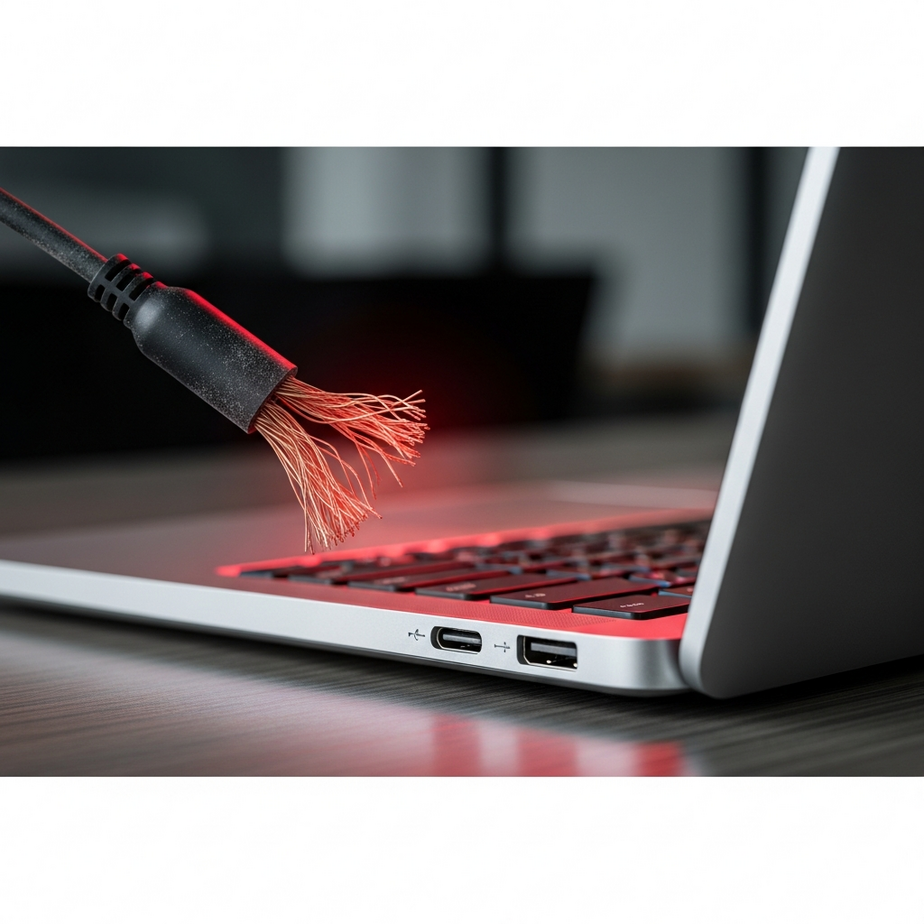
The final item on our list is one that many of us are guilty of ignoring: using a damaged USB cable. That frayed cord you’ve been meaning to replace or the connector that wiggles a bit in the port is more than just an inconvenience; it’s a genuine safety hazard.
The Danger of Short Circuits
When the protective outer sheathing on a USB cable wears away, the delicate wires inside become exposed. If these wires touch each other, it can cause a short circuit. A short circuit can send an unregulated electrical current into your Chromebook’s USB port.
This can lead to the same kind of damage caused by a high-powered peripheral, including a fried port or a damaged motherboard. In rare but possible cases, a significant short circuit can even create a spark, posing a fire risk.
Signs of a Bad Cable
It’s crucial to inspect your cables regularly and replace them at the first sign of trouble. Be on the lookout for:
– Visible Fraying: Any breaks or tears in the outer cable jacket, especially near the connectors.
– Exposed Wires: If you can see the colored wires inside, stop using the cable immediately.
– Loose Connectors: A USB plug should fit snugly into the port. If it’s loose, wobbly, or falls out easily, the connector is likely damaged.
– Intermittent Charging/Connection: If you have to jiggle the cable to get it to work, it’s a clear sign of internal damage.
Cables are inexpensive and easy to replace. Your Chromebook is not. A damaged cord is absolutely one of the things to never plug into your Chromebook’s USB ports.
Stay Vigilant, Stay Protected
Your Chromebook is a powerful and secure tool, but its physical ports are an unavoidable point of entry for a variety of threats. From the instant destruction of a USB Killer to the slow degradation caused by a bad cable, the dangers are real. By being mindful of what you connect, you can easily protect your hardware and your data.
Remember the key takeaways: never plug in a found or untrusted USB drive, avoid cheap, uncertified accessories that could overload your ports, be wary of public charging stations, and regularly inspect your cables for damage. These simple habits are your best defense.
Now that you know the things to never plug into your Chromebook’s USB ports, take a moment to assess your own accessories. Are your cables in good shape? Do you rely on public charging ports? Making a few small changes today can save you from a major headache tomorrow. For more tips on keeping your devices secure, explore our other guides on digital safety and best practices.